
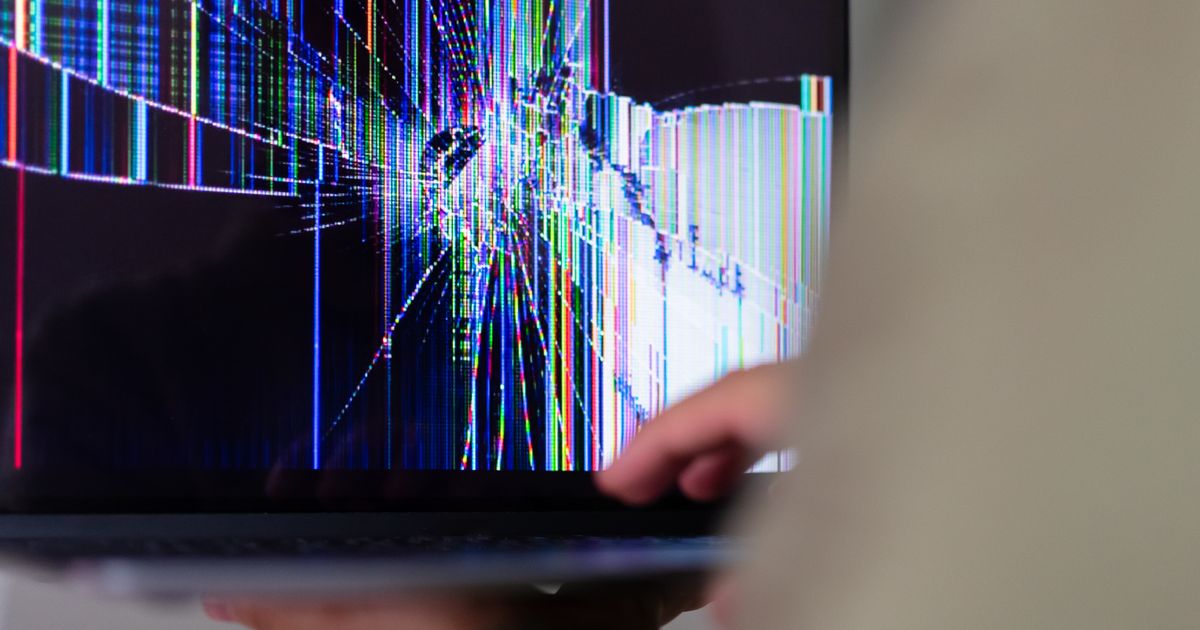
Flicker is the one display symptom that is genuinely worth diagnosing before panicking, because the most common causes cost nothing to fix and the expensive ones are easy to rule out.
Start with the test that splits the field in half.
The Task Manager Test
On Windows, press Ctrl+Shift+Esc to open Task Manager, leave it on screen, and watch.
If Task Manager flickers along with everything else, the problem is the display driver or the hardware. Task Manager renders differently from ordinary applications, so when it flickers too, whatever is wrong sits below the application layer.
If Task Manager stays steady while everything around it flickers, an application is the cause. Usually a badly behaved app, an overlay, or something forcing a redraw.
That is thirty seconds and it eliminates about half of the possibilities. Nothing else in this article is as efficient.
Cause One: Refresh Rate and Power Settings
The cheapest fix and a surprisingly common one.
Check the refresh rate first, under Display settings, Advanced display. A panel set to a rate it does not natively support, which happens after a driver update or a docking station is attached, flickers. Set it back to the panel's native rate.
Then check whether flicker only happens on battery. Many laptops drop refresh rate or enable a panel power-saving feature when unplugged, and on some panels that transition is visible. Plug the machine in and see whether the flicker stops. If it does, the culprit is a power plan setting or the vendor's adaptive brightness feature, not a fault.
Cause Two: The Display Driver
If Task Manager flickers and the refresh rate is correct, the driver is next.
Rolling back or cleanly reinstalling the graphics driver fixes a meaningful share of flicker cases, especially after a Windows update that installed a generic display driver over the vendor one. Use the manufacturer's driver for your exact model rather than the generic GPU vendor package on a laptop, because laptop panels often need vendor-specific timing.
Worth knowing: flicker that started the same week as an update is almost always software. Flicker that came on gradually is almost never.
Cause Three: The Display Cable
This is the most common hardware cause, and it has a signature.
Open and close the lid slowly, in small steps, pausing at each angle. If flicker appears at a particular hinge position, disappears at another, and does so repeatably, the display cable has worn through inside the hinge. It runs through the hinge and flexes every time the lid moves, which makes it the most mechanically abused part in the machine.
Do not wiggle the lid quickly. That moves the whole assembly and tells you nothing. Small steps, pause, watch.
A cable is a cheap part. The labour is not always cheap, since it means getting into the display assembly, but it is a far better answer than a panel.
Cause Four: The Backlight or Its Driver
Backlight flicker looks different from data flicker. The image stays correct and the whole screen pulses or dims, often more visibly at low brightness.
On LED panels brightness is controlled by switching the backlight on and off very fast, and at low brightness settings some panels do this slowly enough to be perceptible. That is PWM, it is a characteristic of the panel rather than a fault, and the test is simple: does the flicker go away at high brightness? If yes, it is PWM and the panel is working as designed. Some people are far more sensitive to it than others.
If the pulsing happens at all brightness levels and is getting worse, the backlight driver circuit is failing and the practical fix is a new panel.
Cause Five: The Panel Itself
Last on the list because it is last in likelihood.
A failing panel usually produces flicker that does not respond to anything: not lid position, not brightness, not driver changes, not refresh rate. It often arrives alongside other symptoms, lines that stay in place, patches of wrong colour, or a section that goes dark.
The confirmation is an external monitor. If the external display is perfectly steady while the laptop panel flickers, everything upstream of the panel is fine. Combined with a lid sweep that changes nothing, that points at the panel.
Reading It All at Once
| What you see | Most likely | Cost to check |
|---|---|---|
| Task Manager steady, everything else flickers | An application | Free |
| Started right after an update | Display driver | Free |
| Only flickers on battery | Power plan or adaptive brightness | Free |
| Changes with lid angle, repeatably | Display cable | Free to check |
| Only at low brightness, gone at high | PWM, not a fault | Free |
| Whole screen pulsing at all brightness | Backlight driver | Panel replacement |
| Unaffected by anything, plus lines or patches | Panel | Panel replacement |
| External monitor flickers too | GPU or board | Not a screen repair |
Work down that table in order and you will have an answer before you have spent anything. The first five rows are free, and they cover most cases.
If It Does Turn Out to Be the Panel
Getting the right replacement is its own problem, because one laptop model ships several different panels and the connector is not on any spec sheet. How to find the right replacement screen covers the part number method, and how to replace a laptop screen covers the swap.
If it is the cable, the good news is that the part is cheap. Get the quote before assuming otherwise.
Related on Consumercarts
- Browse laptop replacement screens
- Panel, Backlight, Cable or GPU? How to Diagnose a Dead Laptop Screen
- How to Find the Right Replacement Screen for Your Laptop
- How to Replace a Laptop Screen: Step by Step
- Is Your Laptop Worth Repairing? A Parts and Value Guide
- Laptop Screens Explained: Resolution, Size, Refresh Rate, and OLED vs LCD
Panels for the common sizes: Innolux N156HCA-EBA, 15.6-inch FHD IPS, BOE NT140FHM-N41, 14-inch FHD IPS, AUO B173HAN04.4, 17.3-inch 144Hz.